Navigation User Guide
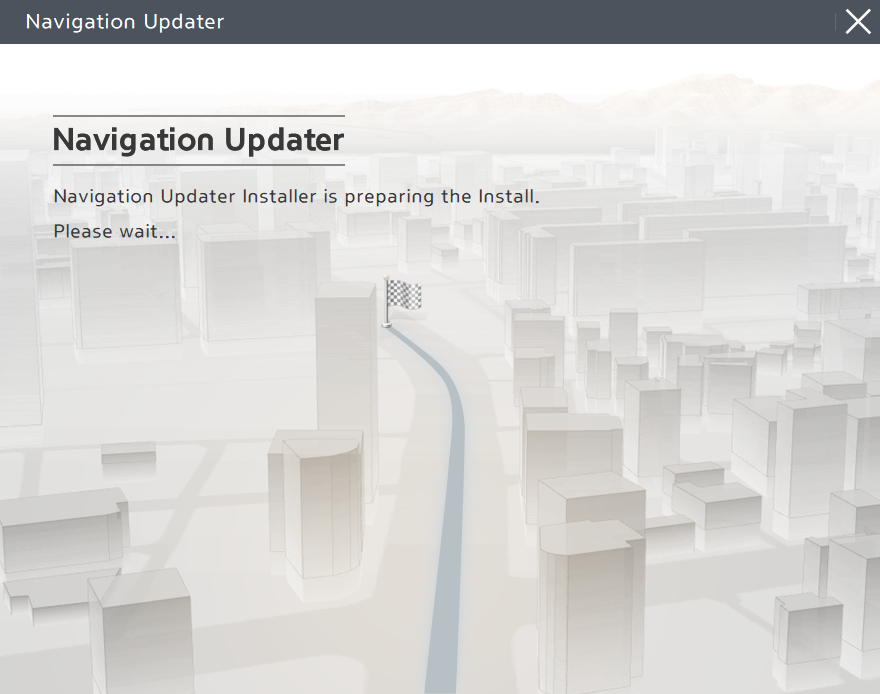 Install the downloaded file.
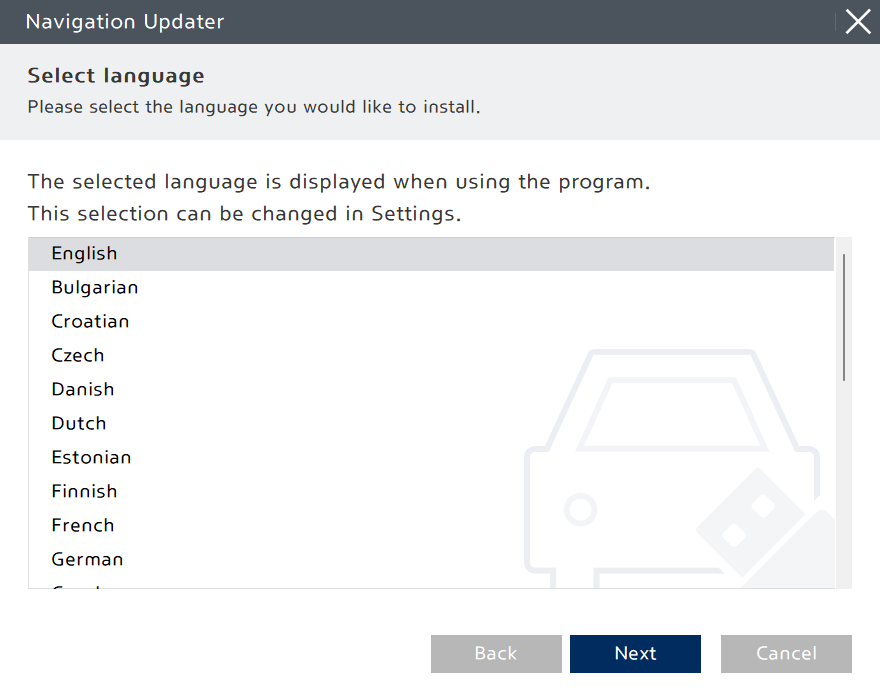 Select the language you want to use in the program, then click the "Next" button.
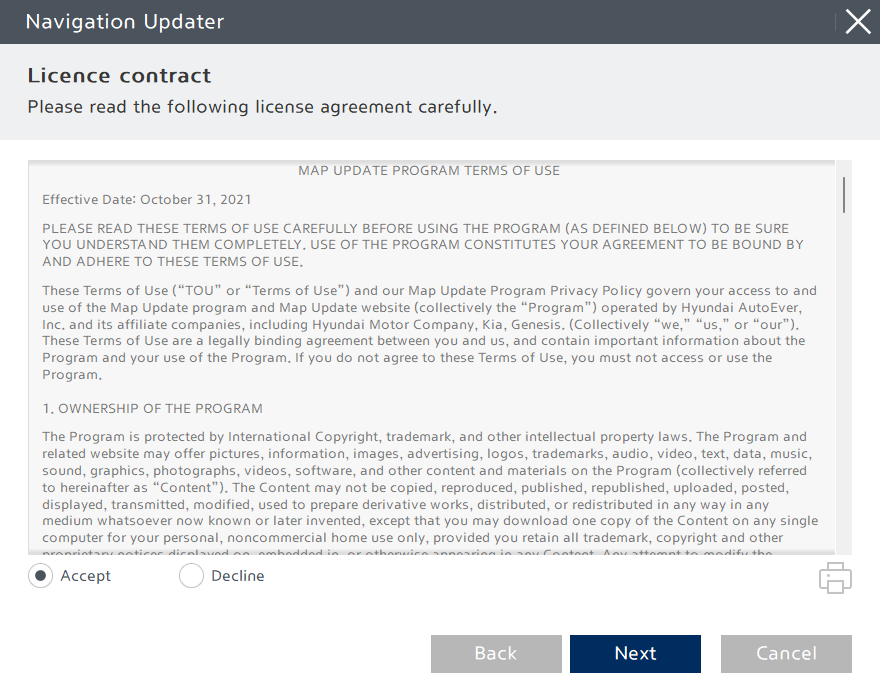 Once the program installation is ready, review the terms of the license agreement and the navigation update software usage rights, check the confirmation and agreement button, and then click the "Next" button.
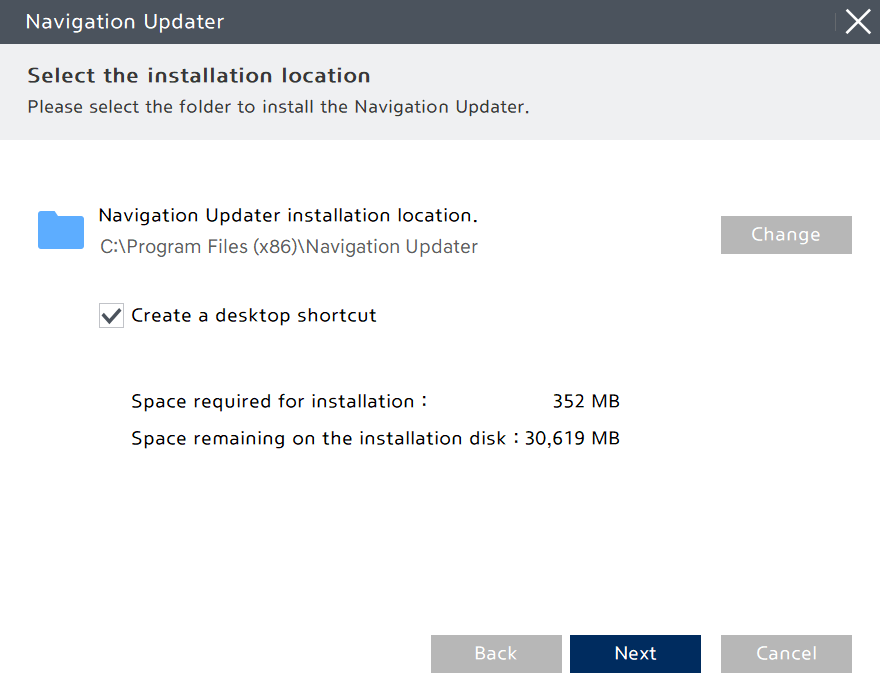 Choose the location where the program will be installed, then click the "Next" button to proceed with the installation.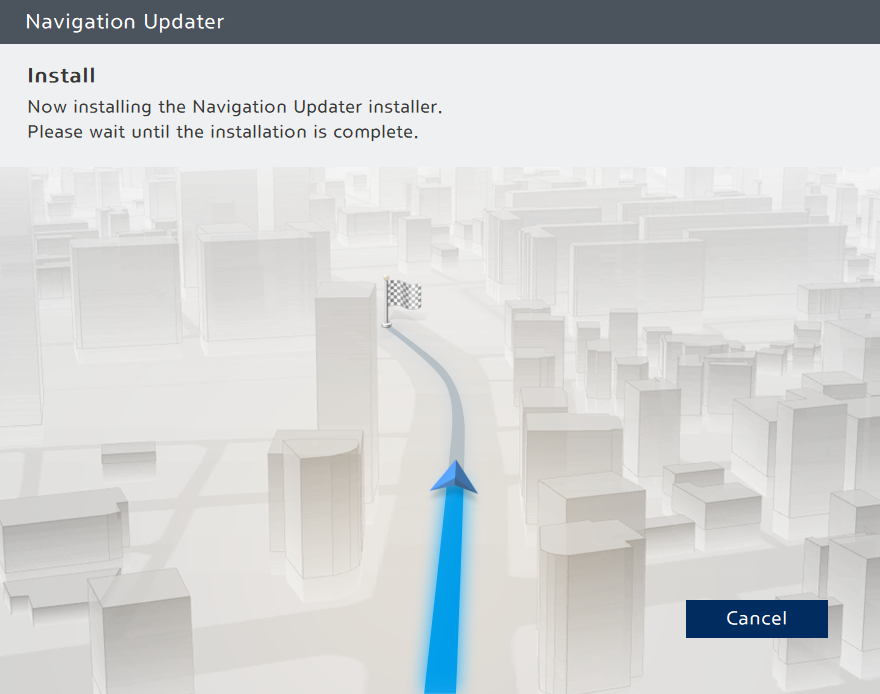
 Click the "Open" button.
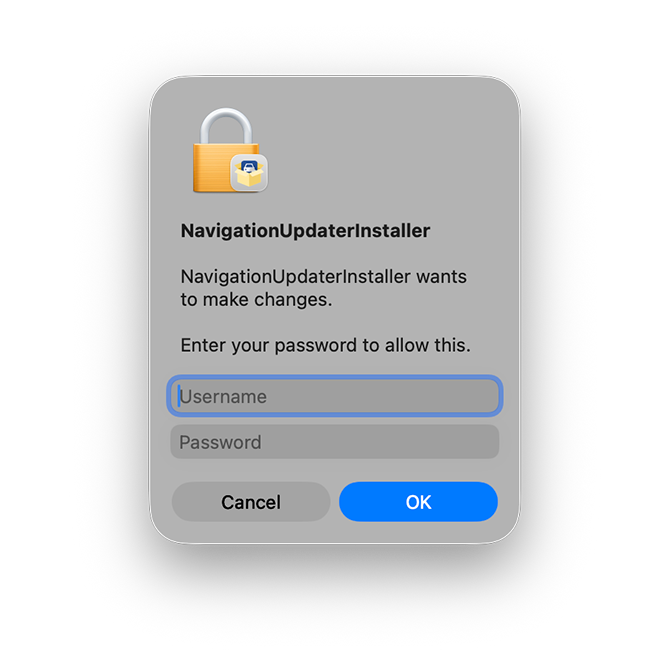 Authorize the app to make the appropriate changes by putting your Apple computer username and password.
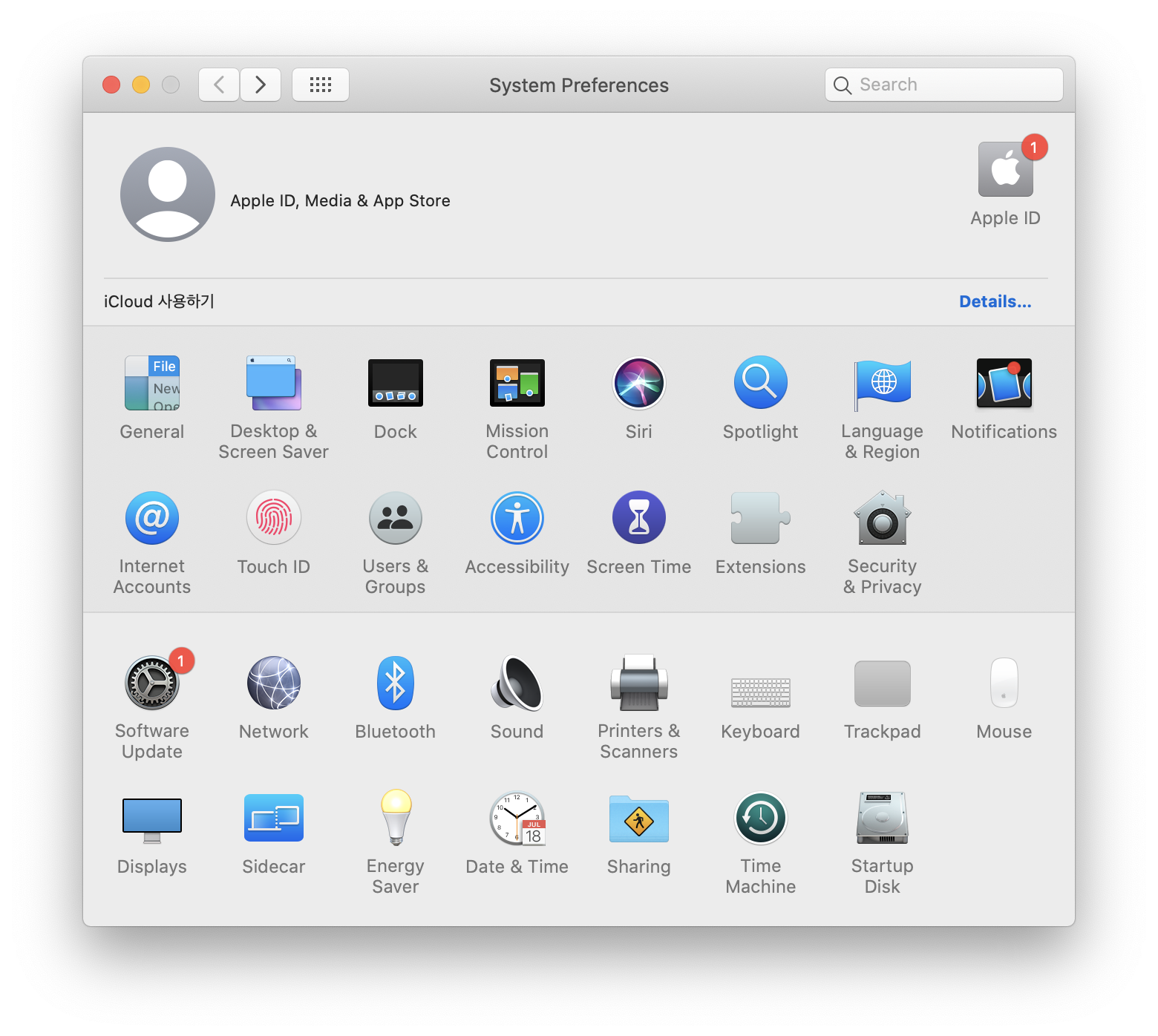 Go to System Preferences > [Security & Privacy] and click on it.
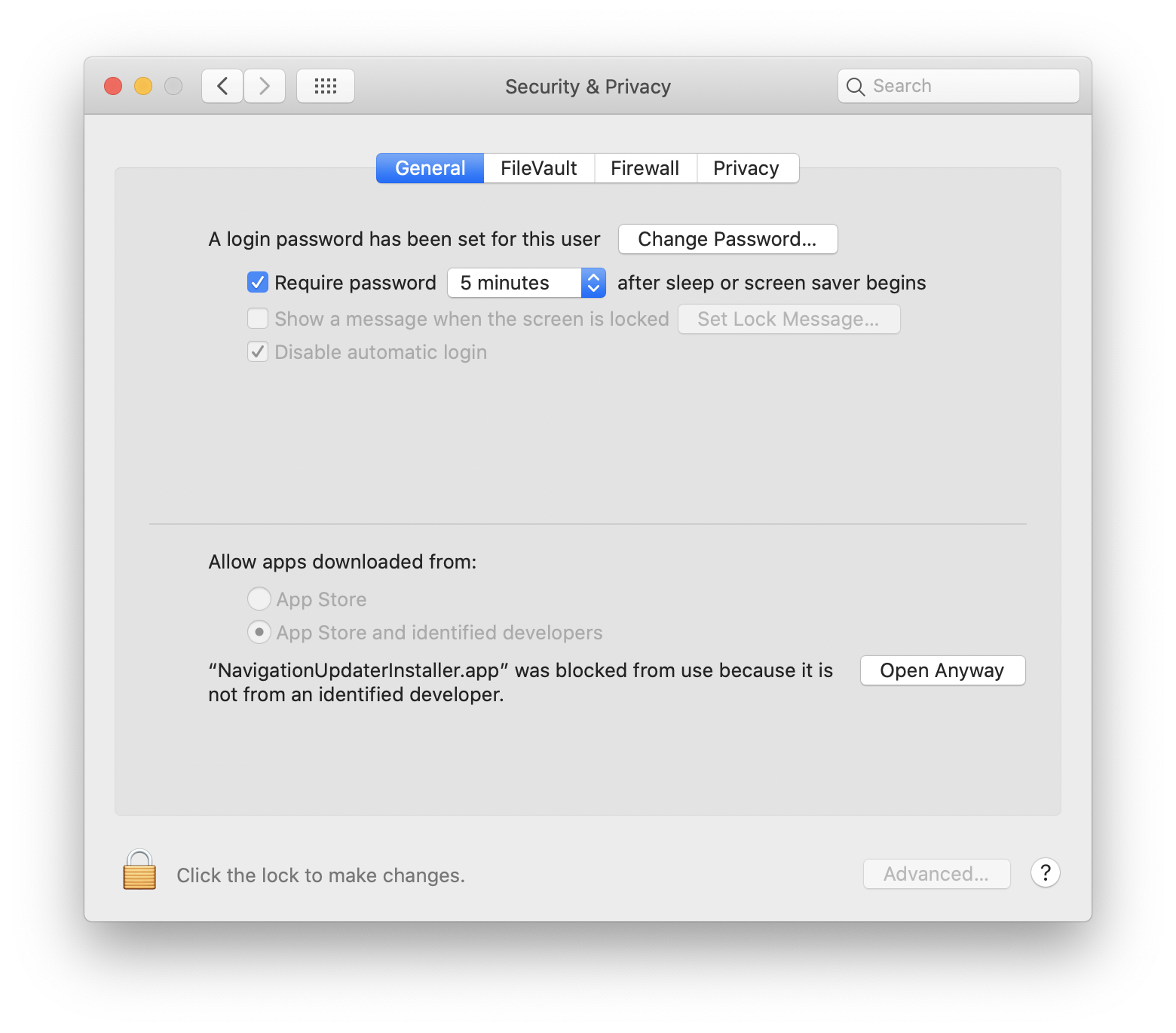 In [Security & Privacy] > [General] > [Allow apps downloaded from], click the "Open Anyway" button.
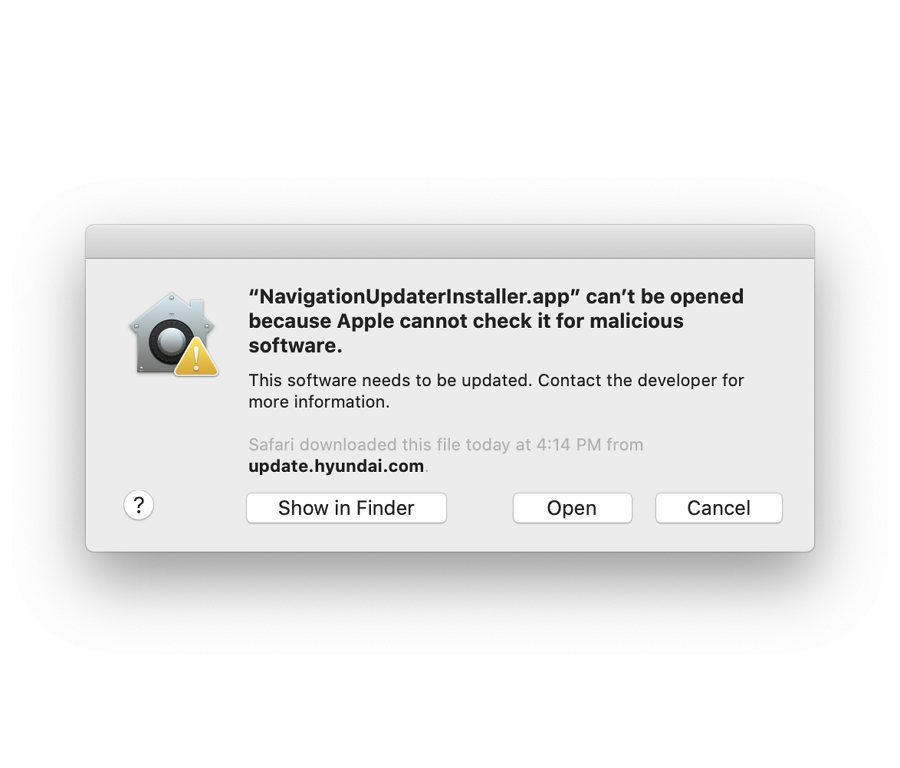 Click the "Open" button.
 Install the downloaded file.
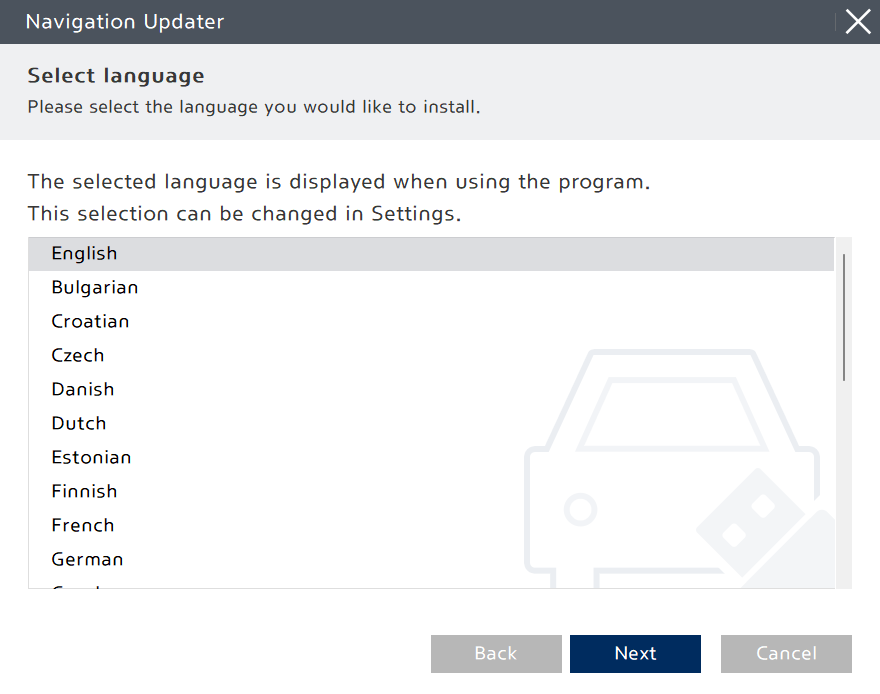 Select the language you want to use in the program, then click the "Next" button.
 Once the program installation is ready, review the terms of the license agreement and the navigation update software usage rights, check the confirmation and agreement button, and then click the "Next" button.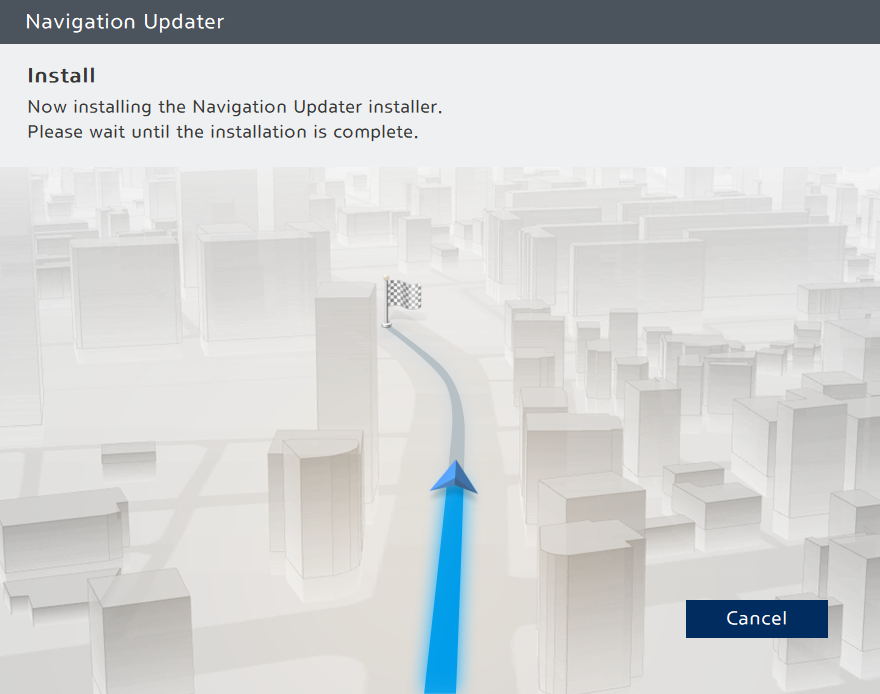
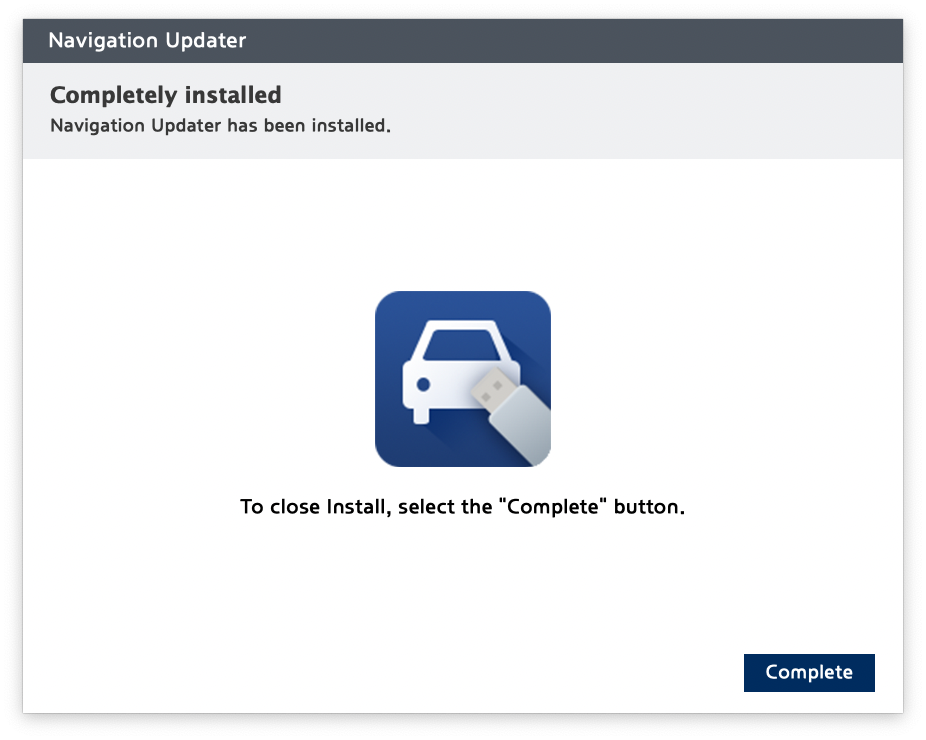 Click the "Complete" button to complete the installation.
 Launch Navigation Updater.
- Use [Check for available software updates] on the home screen to find the latest software for your vehicle.
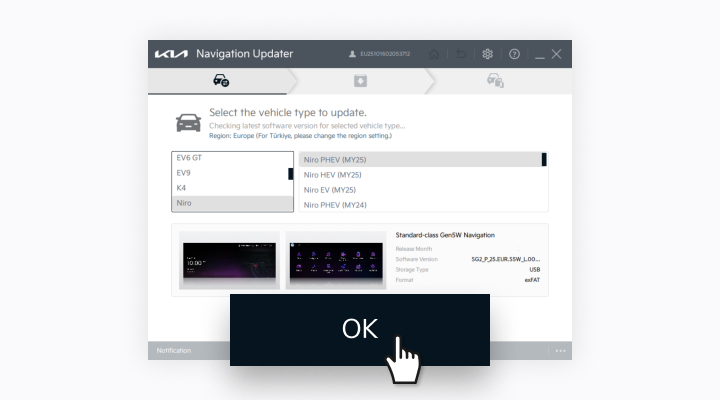
- Have you found your vehicle? Click the [Download] button to launch the installed Navigation Updater.
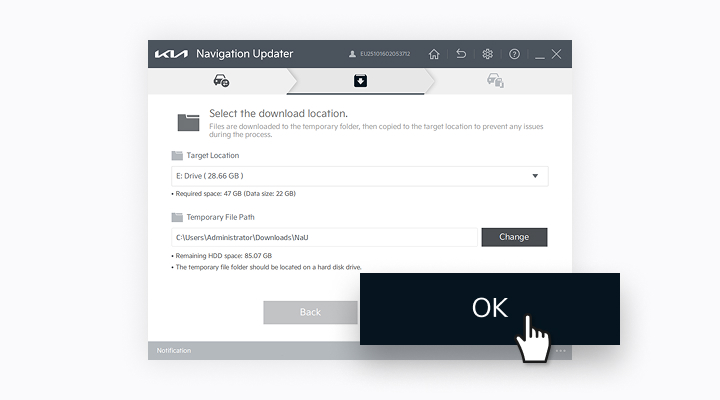
- If your vehicle is selected, please click the [OK] button. If an incorrect item is selected, please click the download button on the webpage again.
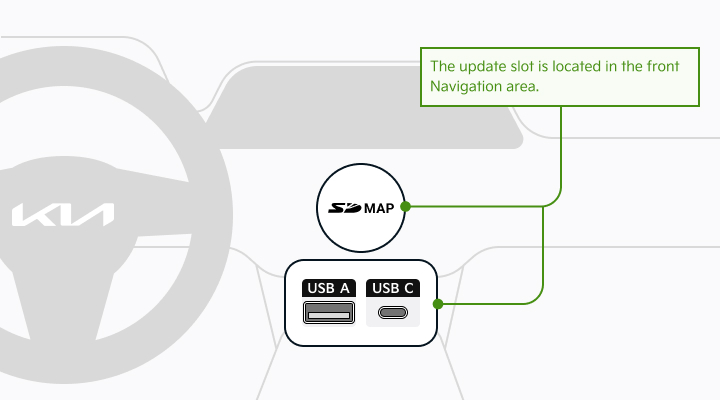
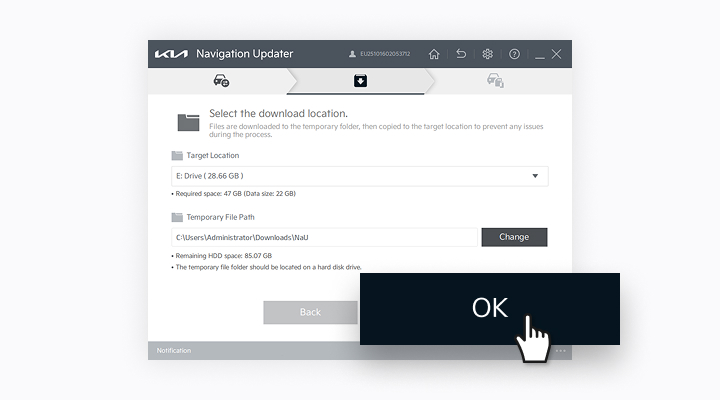
- Select the save location, then click the [OK] button.
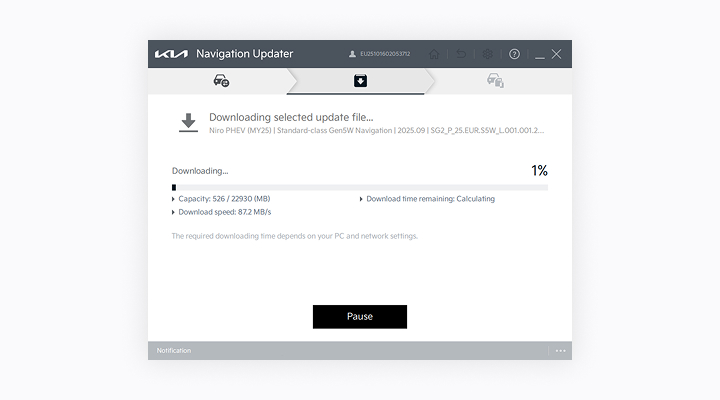
- Check the download progress.
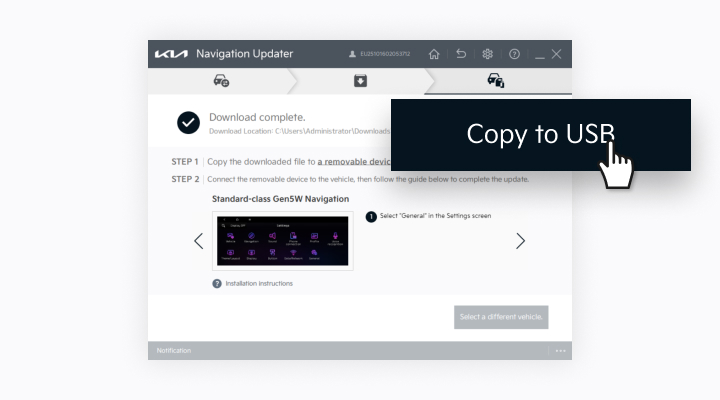
- Once the download is complete, select [USB] to transfer the update files to the removable storage device.If the files were downloaded directly to the removable storage device, proceed to the next step immediately.
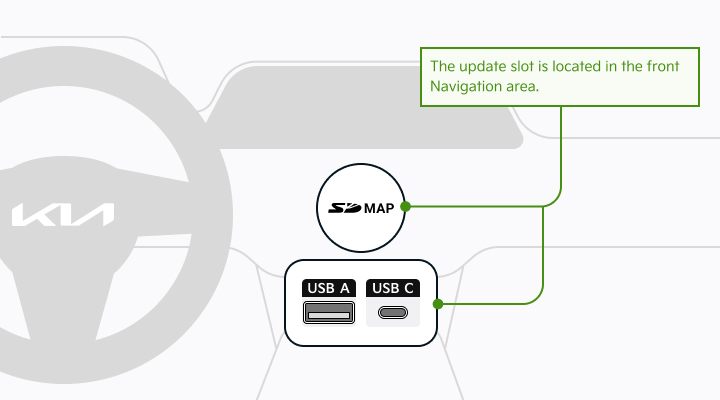
- Connect the removable storage (USB or SD Card) to the vehicle.
- From the navigation's main menu, go to [Settings] > [General] > [SW Info/Update] tab, then select [Update].
※ Important Notes for In-Vehicle Updates
1. The update can only be performed while the navigation system is turned on.
- Caution: If using the vehicle's battery power, ensure the battery is sufficiently charged before proceeding with the update.
2. If the navigation system loses power or the media is removed during the update, it may not function properly.
- The navigation system may also shut down if the engine is started while the update is in progress with the ignition button in the ON position.
Standard-class Gen1 Navigation
Please take the portable device (USB) to your vehicle and proceed with the updating process. Instructions are provided below.

connect the USB and select the "OK" button when the upgrade screen appears
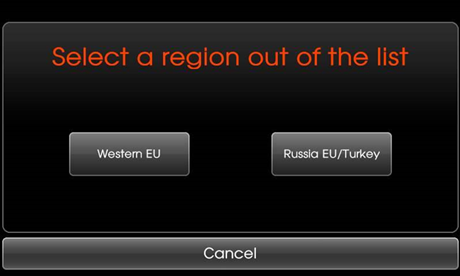
Please select the map you want to download The detailed area can be checked in the next step
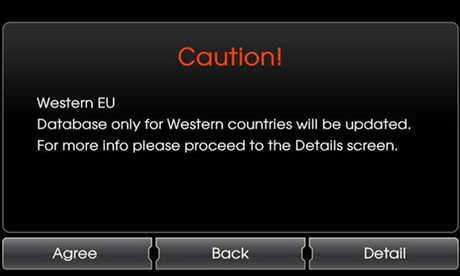
Select the "Detail" button. Then, check whether there is the country you would like to download from the map coverage

After check whether there is the country you would like to install Select the "Back" button

Please read the cautions and select the "Agree" button
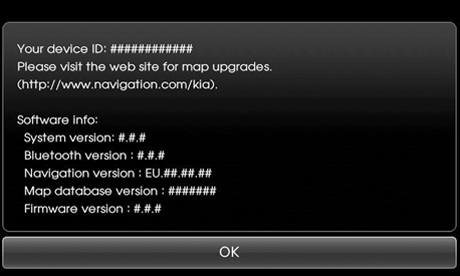
Please check the Version after completing the update
Standard-class Gen2 Navigation
Please take the portable device (SD Card) to your vehicle and proceed with the updating process. Instructions are provided below.
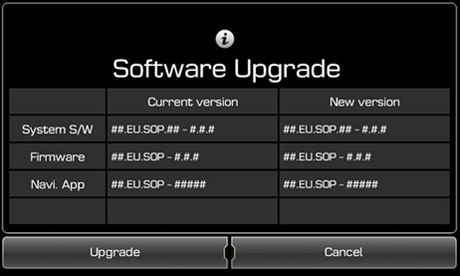
After inserting the SD card and rebooting, a Software Upgrade screen appears Click the "Upgrade" button
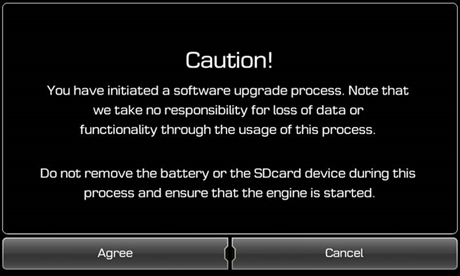
Please read the cautions and select the "Agree" button

Press the "Restart System" button when the upgrade is complete or wait 10 seconds and the system will restart
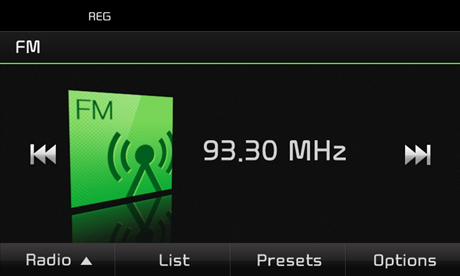
Update has been completed
Standard-class Gen4 Navigation
Please take the portable device (SD Card) to your vehicle and proceed with the updating process. Instructions are provided below.
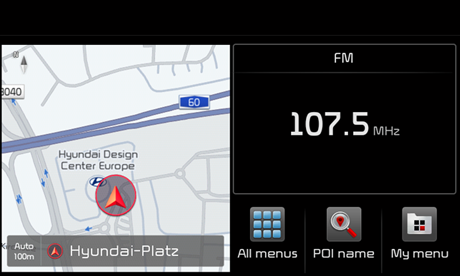
Select "All menus" in the Home screen

Select "Settings" in the All menus screen
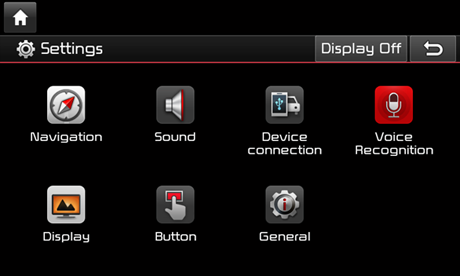
Select "General" in the Settings screen

Select “SW info” in the General settings screen and then the “Update” button to proceed with the update
Standard-class Gen5 Navigation
Please take the portable device (SD Card) to your vehicle and proceed with the updating process. Instructions are provided below.
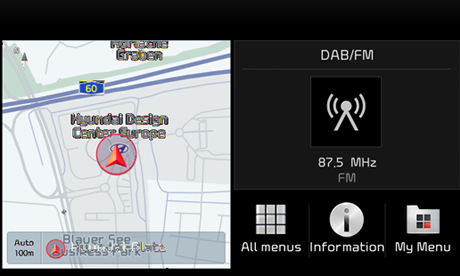
Select "All menus" in the Home screen
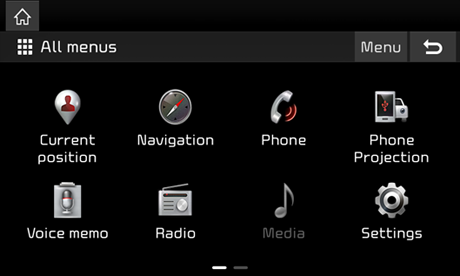
Select "Settings" in the All menus screen
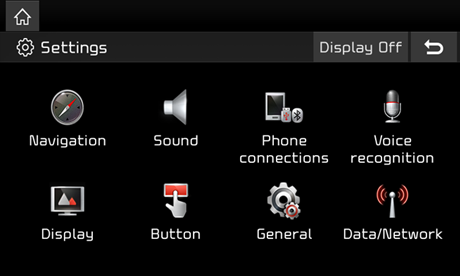
Select "General" in the Settings screen
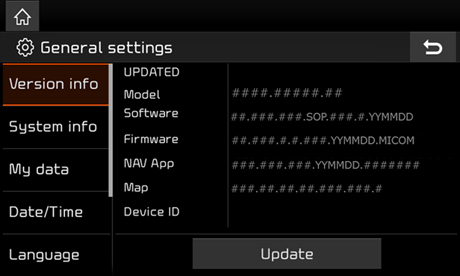
Select “Version info” in the General settings screen and then the “Update” button to proceed with the update
Standard-class Gen5W Navigation
Please take the portable device (USB) to your vehicle and proceed with the updating process. Instructions are provided below.
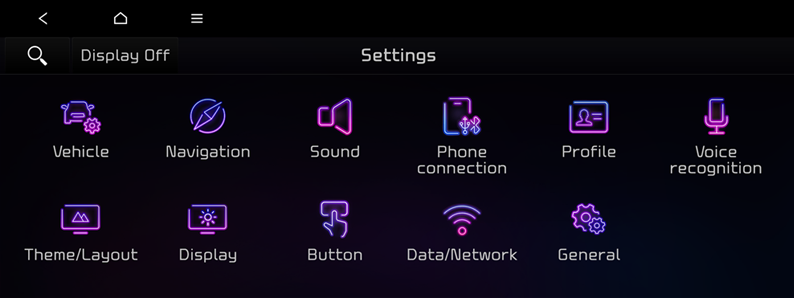
Select "General" in the Settings screen
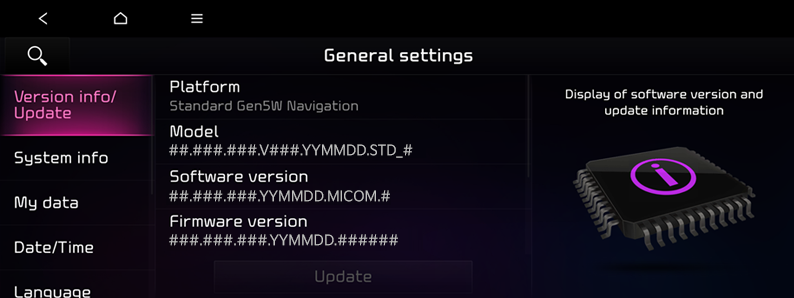
Select "Version info/Update" in the General settings screen

Select “Version info/Update” in the General settings screen and then the “Update” button to proceed with the update
Standard-class Gen5W Navigation(8 Inch)
Please take the portable device (USB) to your vehicle and proceed with the updating process. Instructions are provided below.
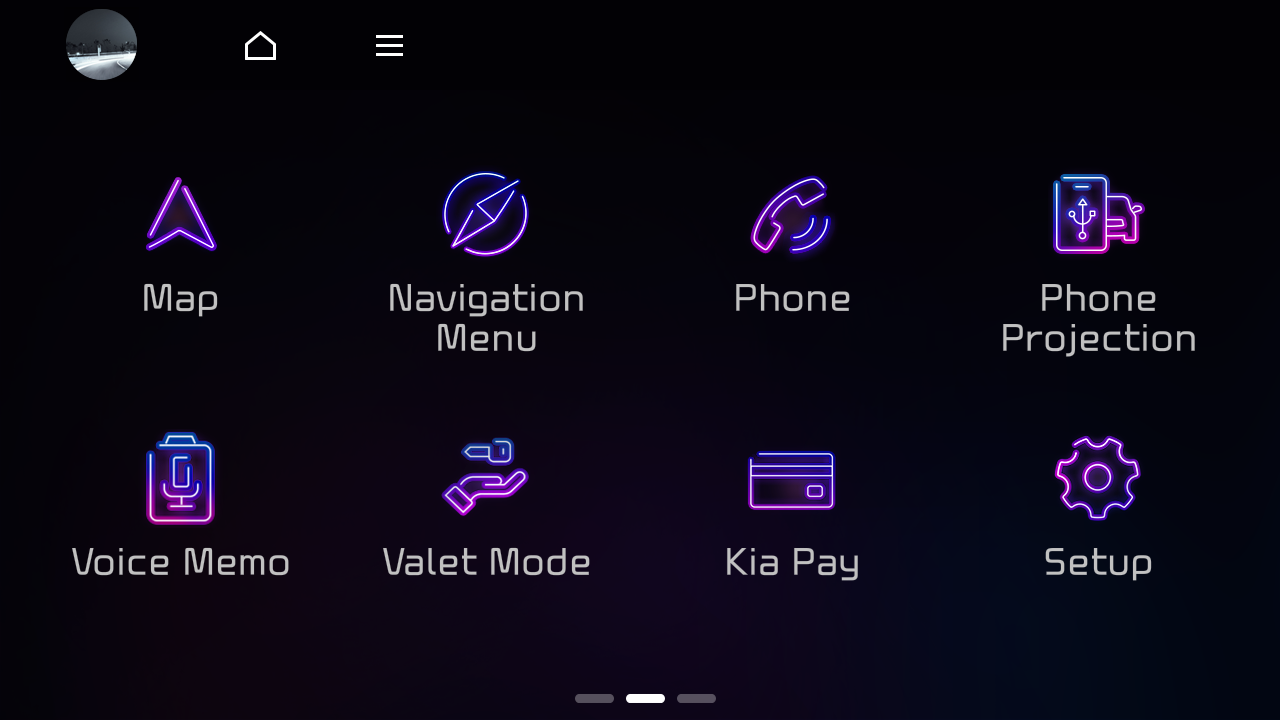
Select "Setup" in the Main menu
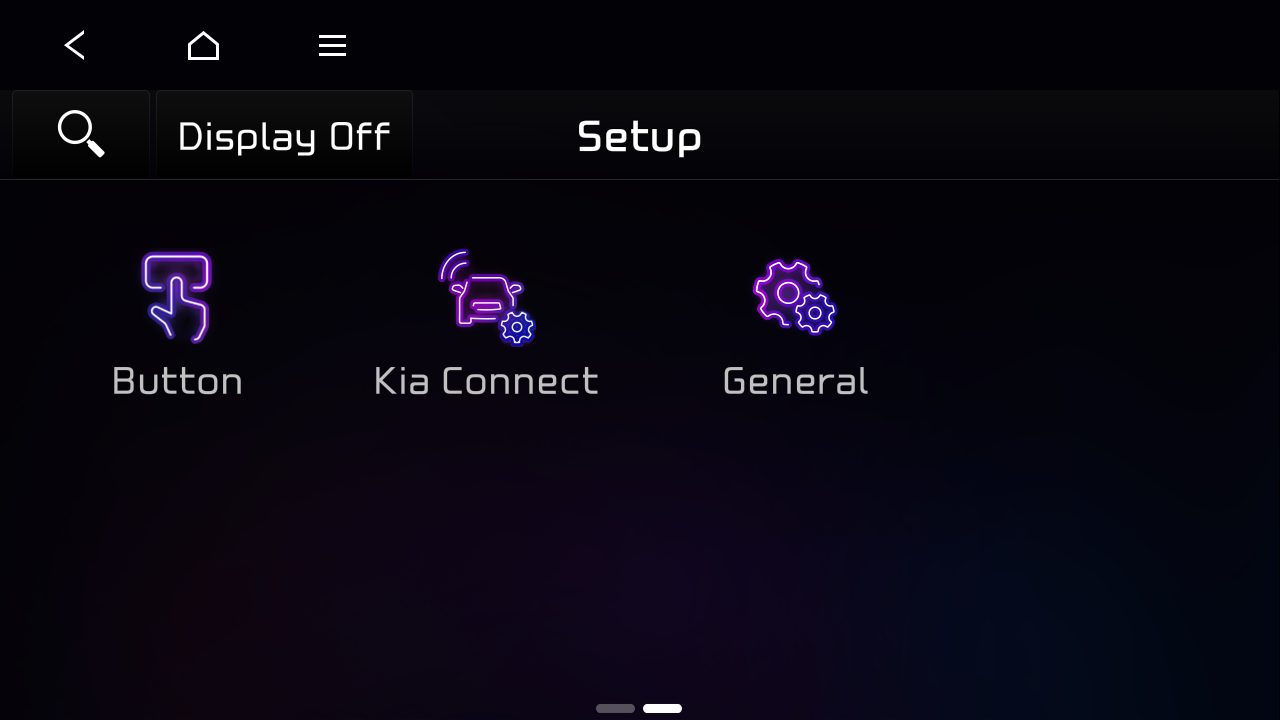
Select "General" in the Setup screen

Select “SW Info/Update” in the General Settings screen and then the “Update” button to proceed with the update
Standard-class Gen5W Navigation(Jong-e)
Please take the portable device (USB) to your vehicle and proceed with the updating process. Instructions are provided below.
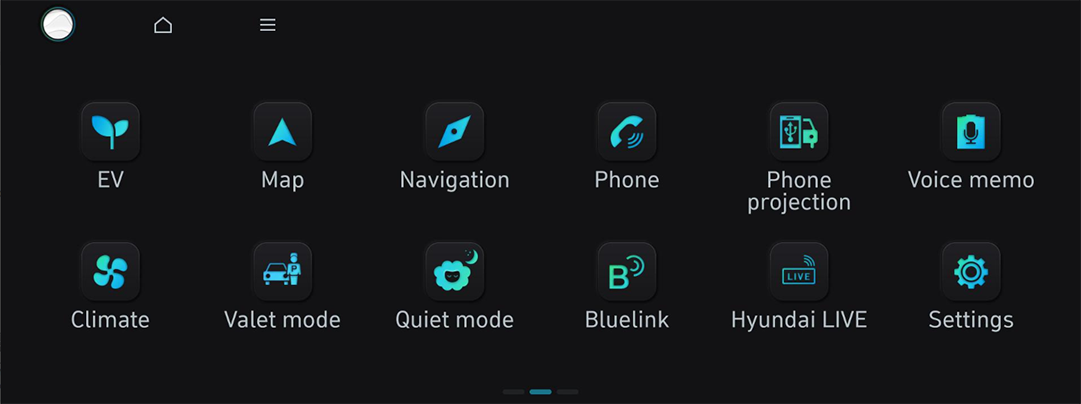
Select "Settings" in the Main menu
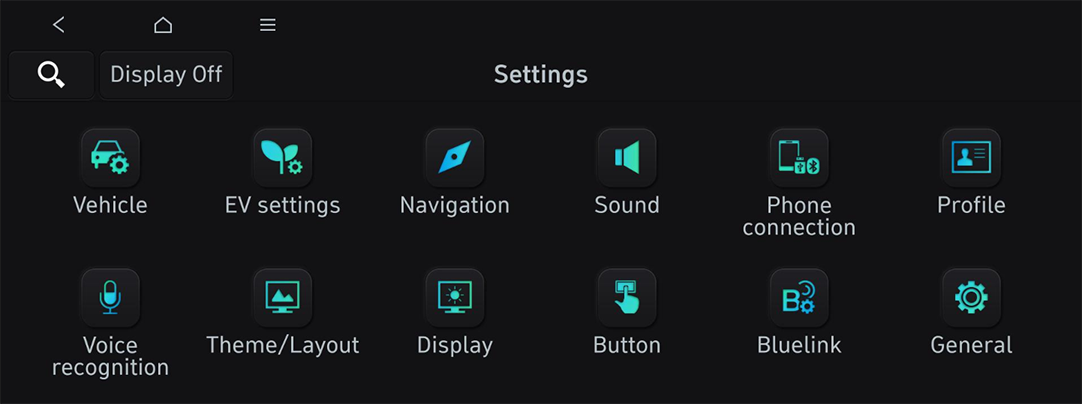
Select "General" in the Settings screen
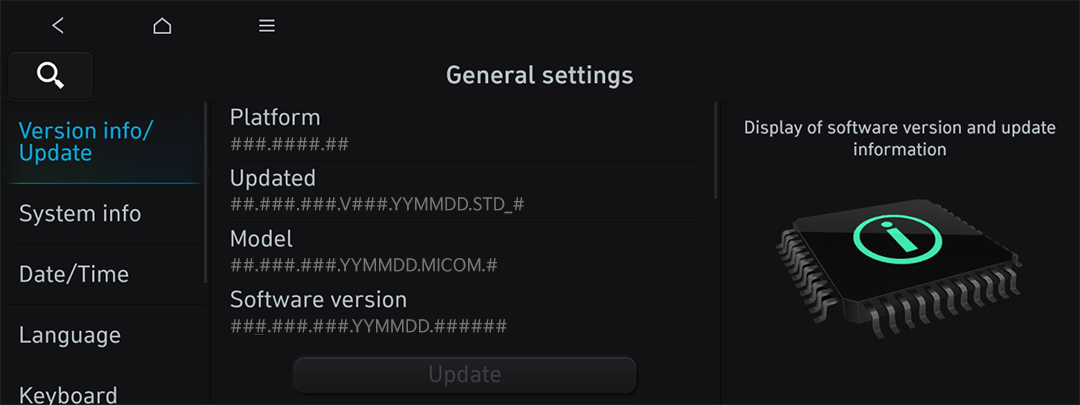
Select “Version info/Update” in the General settings screen and then the “Update” button to proceed with the update
ccNC Navigation
Please take the portable device (USB) to your vehicle and proceed with the updating process. Instructions are provided below.
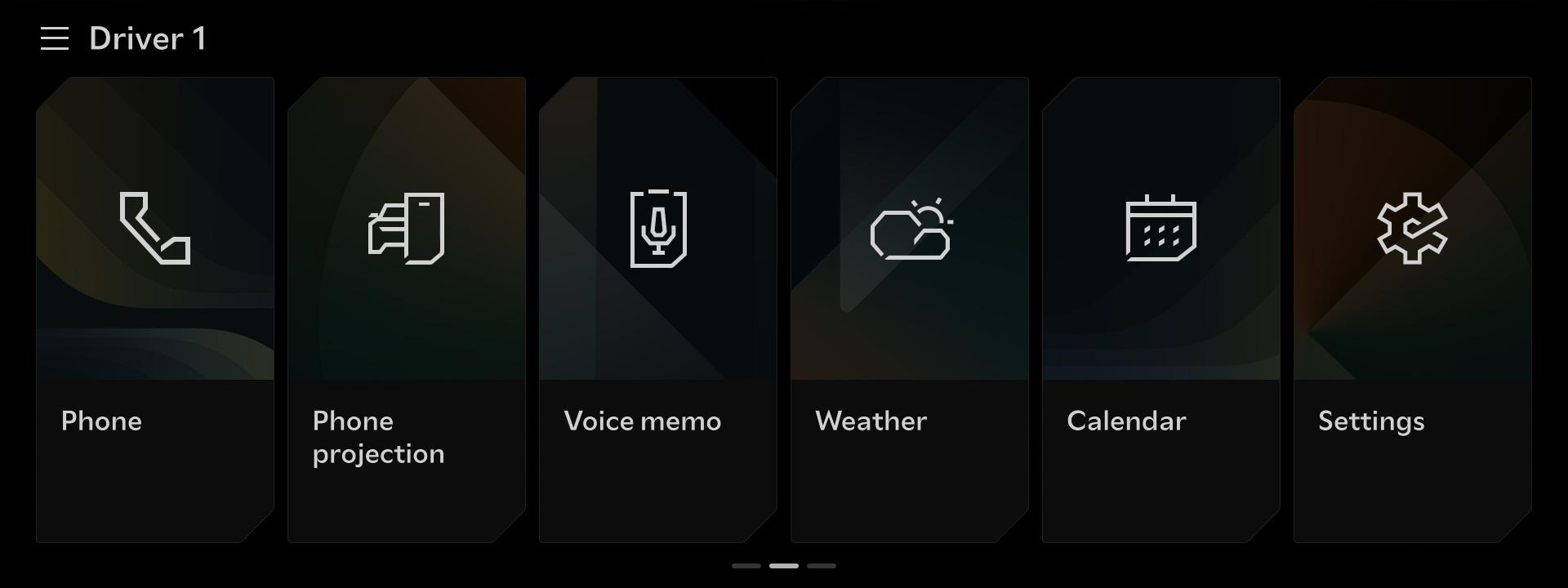
Select "Settings" in the Main Menu
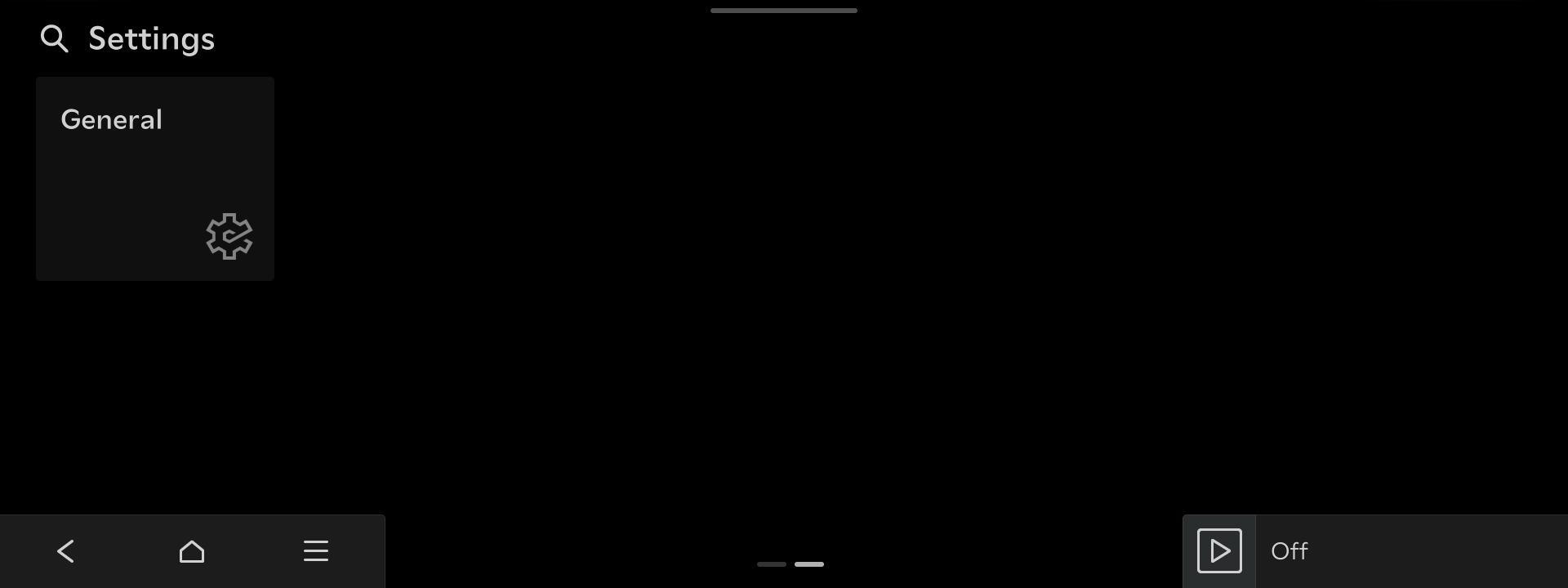
Select "General" in the Settings screen

Select “Software info/update” in the General screen and then the “Update” button to proceed with the update
Compact-class Gen5 Navigation
Please take the portable device (SD Card) to your vehicle and proceed with the updating process. Instructions are provided below.

Select "All menus" in the Home screen

Select "Settings" in the All menus screen

Select "General" in the Settings screen
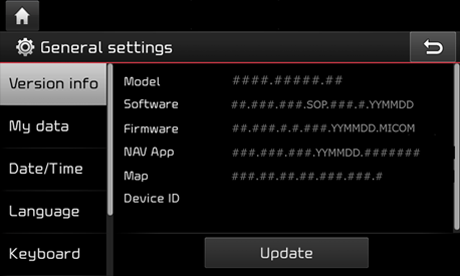
Select “Version info” and then “Update” in the General settings screen to proceed with the update
- USB Flash Drive
Item Specification Category Image 
Recommended USB Type

Non-Recommended USB Type
- ※ Non-recommended USB types: Stability may be low during long-term upgrades due to wear on the contacts.
- ※ Some navigation systems require the use of USB Type-C.
Recommended Capacity 64GB Recommended File System exFAT
- ※ If the file system is different, the navigation system may not recognize the storage medium.
- ※ If the PC recognizes it as a local disk rather than a removable disk, file copying via Navigation Updater may not proceed.
Recommended - SD Card
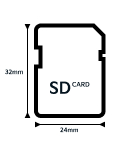
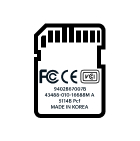
Item Specification Category Image Recommended Capacity 32GB (SDHC) Recommended File System FAT32
- ※ If the file system is different, the navigation system may not recognize the storage medium.
Recommended Speed Class UHS-I (10MB/s ~) Recommended